Avoid appointment-time confusion across the November clock change
For daylight saving appointment scheduling, confirm the full appointment date, local time and named timezone before saving, then compare the saved result with the final readback. Ask which local timezone the caller means. Route repeated or nonexistent times to a human; never silently add or subtract an hour to make a request fit.
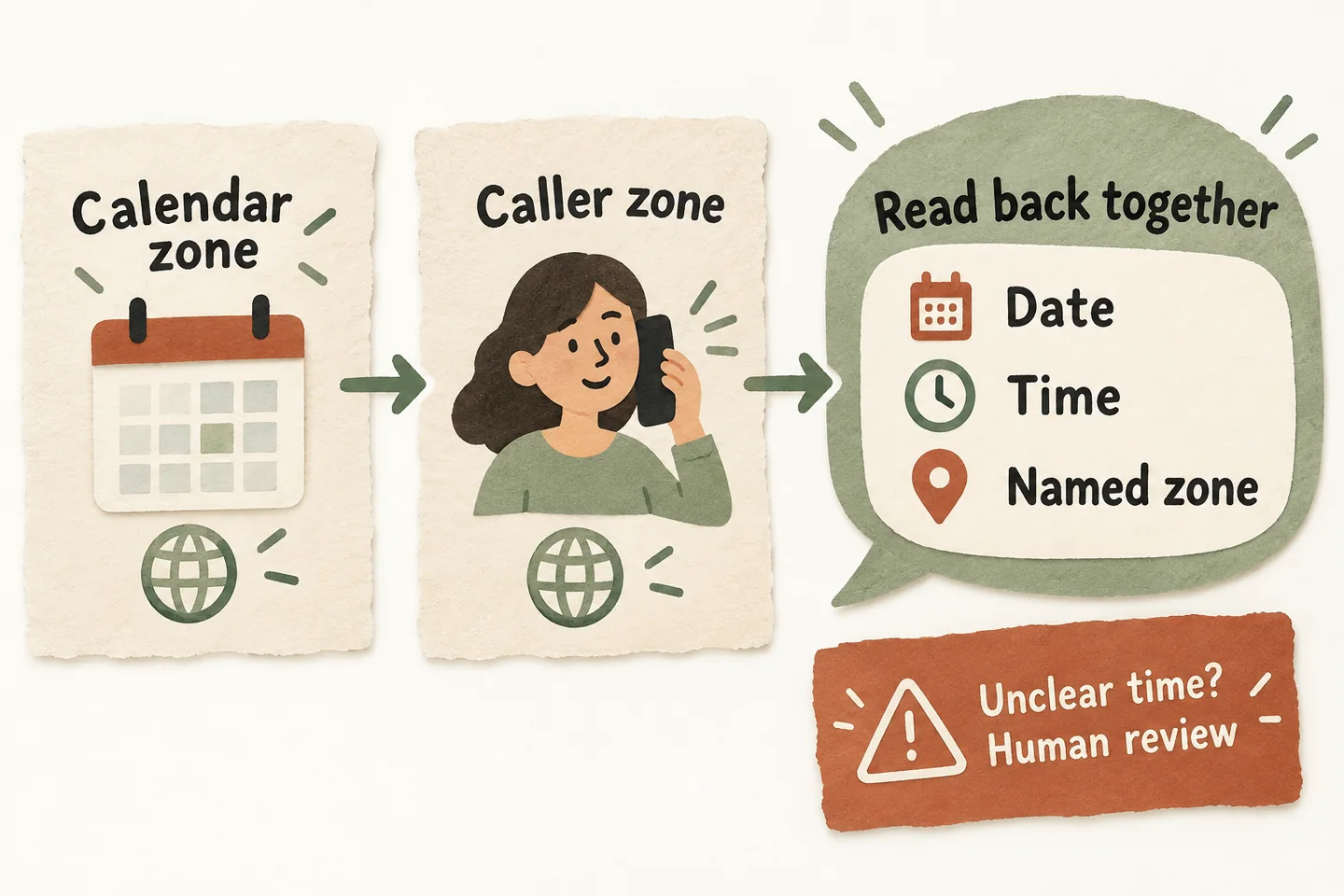
Start with the calendar’s named timezone
Toronto turns its clocks back at 2 a.m. on Sunday, November 1, 2026, according to the City of Toronto’s current clock-change notice. That local fact is useful for Toronto appointments; it does not establish the rules for every Canadian province or US location.
Check the intended calendar and event timezone. Google Calendar’s developer documentation specifies named IANA timezones for calendars and events. It also shows that different time representations can describe the same event time. A Toronto calendar’s America/Toronto zone expresses a region’s rules; a fixed UTC offset alone is not a substitute.
Assign a staff owner to check this configuration. A changed screen display is a reason to compare records, not automatic evidence that an appointment moved. Keep the appointment check separate from changing the business’s phone hours.
Use a date-and-zone confirmation worksheet
Complete this worksheet for a test scenario before approving the wording used with callers. Retain only the information needed for the appointment and its review. The calendar owner decides what evidence demonstrates a successful booking.
| Check | Record or compare | If unclear |
|---|---|---|
| Calendar identity | Correct business calendar and configured named timezone. | Ask its owner; do not guess from device settings. |
| Requested visit | Full local date, start time, service and location. | Clarify “tomorrow,” “next Friday” or changed details. |
| Caller’s meaning | City or named timezone the caller means for that date. | Ask again instead of assuming their phone’s location. |
| Clock-change edge | Whether that local time repeats or does not exist. | Refer the request for human review before confirmation. |
| Saved outcome | Authoritative saved result versus intended date and zone. | Keep it a request until success is established. |
| Final readback | Full date, time, named local zone and agreed visit details. | Resolve any mismatch through the approved process. |
Use the broader AI appointment scheduling readiness guide for bookable services and confirmation rules. This worksheet adds a timezone check; it does not prove that a particular business’s calendar is connected.
A fictional booking readback after the change
Illustrative scenario only: a Toronto service business and a caller both intend Toronto local time. They are discussing Monday, November 2, 2026, at 9:00 a.m. on a calendar configured as America/Toronto. No real appointment, customer or successful product test is represented by this example.
For a caller elsewhere, establish their intended zone and check its relationship to the appointment zone on the actual visit date. Read back both local dates and times if needed, including any different calendar date. Do not use today’s time difference as an unchecked shortcut.
Send repeated or skipped times to a human
A clock change can make a local time ambiguous. When Toronto’s clocks move back on November 1, the hour containing 1:30 a.m. repeats. A request for “1:30” therefore needs more information than a date and city. Staff must resolve which occurrence was intended and verify the resulting record before anyone confirms it.
A spring clock advance can instead skip local times. If the requested time does not exist in the selected zone on that date, do not silently move the booking to another hour. Explain that the requested time needs review and have the authorized person agree a valid alternative with the caller.
These are review rules, not claims that AI Receptionists automatically detects, converts or repairs every daylight-saving edge case. A confident spoken answer is not evidence that the calendar action was correct.
Test display and readback, then review affected bookings
- Test appointments on dates before and after the change in the approved test process. Record the calendar identity, named zone and intended local time for each case.
- Compare the authoritative event with its displayed time and the spoken confirmation. If staff or callers view another zone, check the date as well as the hour.
- Include an unclear timezone request and an edge-time request. Verify that the approved human-review outcome is clear instead of accepting an invented conversion.
- Inspect potentially affected existing bookings before changing them. Establish the intended visit time, actual saved record and any mismatch; do not shift every appointment by an hour.
- Use the business’s approved process to reconfirm affected appointments. Record who owns the follow-up and its outcome. Changes to a recurring series also need explicit scope and approval.
A reminder or reconfirmation message requires its own approved sender and workflow. This checklist does not establish automated messaging capability or permission to contact a caller through a new channel.
Preview the wording, then verify your own workflow
The current AI receptionist for small business offer supports booking when enabled and connected to Google Calendar; an appointment is confirmed only after a successful save. Use the Google Calendar AI receptionist setup checklist to identify the configuration and evidence your business needs.
You can try the live AI receptionist demo to hear the sample conversation. Press Start explicitly when ready. The sample does not create a real customer appointment or prove your timezone setup. Request a business-specific demo as the next step, then review the actual calendar workflow before relying on it.
Sources and further reading
YOUR CALLS, YOUR NEXT STEP
Try the live demo

Hear a sample appointment conversation, then review the date-and-zone worksheet for your business. Open the demo and press Start when ready. The sample does not create a real booking; request a business-specific demo to discuss your calendar workflow.