Set callback windows when your office and callers use different timezones
Set a cross-timezone callback window by recording the caller’s local date and preferred hours, the office’s matching date and hours, and the named timezone for each. Verify the conversion for that exact date, then check staff availability and closure rules. Keep the window marked as a request until an authorized person or supported workflow confirms it.
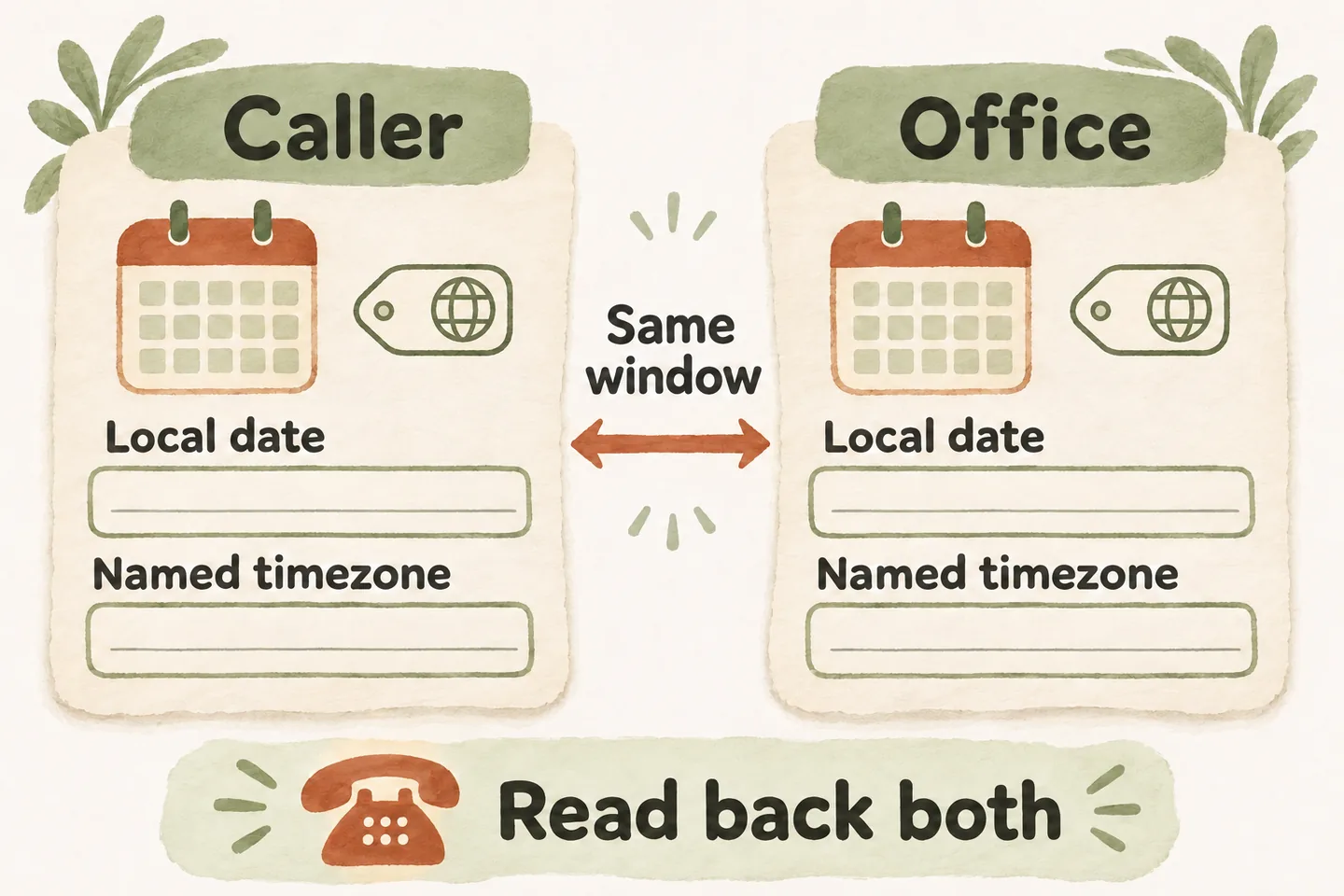
Identify both local times before offering a window
Ask which location and timezone should govern the callback, especially when the caller is travelling or arranging service elsewhere. A telephone area code does not establish where someone will receive the call. Keep the service address separate from the callback location; the appointment and the conversation may use different local times.
Record the office timezone as a named location supported by its scheduling system, alongside a plain-language label staff can recognize. Avoid treating “Pacific” or a number such as UTC−7 as a complete year-round rule. The date, location and current local rules determine the relationship between the two clocks.
Your after hours answering service plan should identify who reviews requests and when that person works. Time conversion helps present the same window to both parties; it does not create an available employee or approve a callback deadline.
Copy this dual-timezone callback worksheet
Complete one record per request. The placeholders below are an original planning template, not a live scheduling interface. Preserve the caller’s original preference even when the translated window is inconvenient for the office; staff need to see the mismatch rather than an invented agreement.
| Record | Caller view | Office view |
|---|---|---|
| Local date and zone | [Full date] and [confirmed location / named timezone]. | [Matching full date] and [office location / named timezone]. |
| Requested window | [Start and end], with morning/evening or 24-hour notation. | [Converted start and end], checked for that exact date. |
| Conversion evidence | [Source of the caller’s zone] and any clarification. | [Supported conversion tool], [checked at] and [reviewer]. |
| Availability and closures | [When the caller can answer]; note any unavailable interval. | [Staffed window], [dated closures] and [applicable cutoff]. |
| Ownership and status | [What the caller requested] and [wording read back]. | [Review owner]; requested, awaiting clarification or confirmed. |
| Changes and outcome | [Revised preference], keeping its date and timezone. | [Actual decision], [decision time] and [next action owner]. |
If the conversion crosses midnight, fill both date fields explicitly. If a window crosses a local day boundary, split it into dated segments so neither person has to infer which “Tuesday night” is meant. Keep sensitive account details outside this worksheet unless the approved workflow needs them.
Verify the date-specific conversion
Use a supported calendar or timezone tool whose current location rules have been checked. The IANA Time Zone Database is updated to reflect changes to offsets, boundaries and daylight-saving rules; software vendors distribute those updates to users. A familiar timezone name alone does not prove the installed data is current.
Recent rule changes make this practical. The British Columbia government’s Pacific Time notice says its new year-round Pacific Time does not turn back on November 1, 2026, while existing local mountain-time arrangements are unchanged. Do not copy a previous year’s offset or assume every place using “Pacific” follows the same rule.
Check both ends of the requested window, then compare the displayed caller date and office date. Where the supported tool exposes an offset or UTC reference, keep that as supplementary evidence. If two tools disagree, ask the responsible administrator to resolve the rule or data version before anyone promises the window.
Decide whose business day controls review
Define “next business day” in the office’s approved calendar, then translate the resulting date and review window for the caller. A holiday list does not establish that your particular business is closed. Use actual staffed hours, dated exceptions and a named review owner, including any arrangements for people working elsewhere.
When the caller’s preference falls outside those hours, record it as unavailable for confirmation and ask for another preference or route the mismatch to staff. Do not silently move the request to the office’s next opening. That time might fall during the caller’s night or on a different date.
Test overnight requests and changed clock rules
Use fictional details and agree the expected result before testing. An overnight test should show both local dates, preserve the original preference and assign review to the correct staffed day. A closure test should use the real approved exception rather than assuming ordinary weekday availability.
For a clock-change boundary, test dated windows on both sides of the transition that applies to either location. Where a local hour repeats or does not exist, require clarification and an unambiguous supported representation. Do not accept a plausible-looking wall-clock time without checking which instant it represents.
Use the daylight saving business phone hours checklist separately to audit greetings, routing and handoffs. This worksheet checks the individual callback request. Record expected and observed dates, status, wording and owner; unresolved differences need a corrected or explicitly pending outcome.
Try the wording, then verify your actual workflow
The current AI receptionist for small business offer includes approved information, caller-detail capture and callback requests. This worksheet does not establish automatic timezone conversion, staff scheduling or guaranteed callback delivery. Verify what your configured workflow can actually record and confirm.
You can try the live AI receptionist demo with a fictional callback preference. The link opens the existing setup; you explicitly press Start before a call begins. Request a personal demo as the secondary step to review your timezones, availability rules and confirmation boundaries.
Sources and further reading
YOUR CALLS, YOUR NEXT STEP
Try a fictional callback preference.

Explore the live demo with invented, nonsensitive details. Request a personal demo to check how your actual callback windows, timezone rules and staff review process can be supported.